
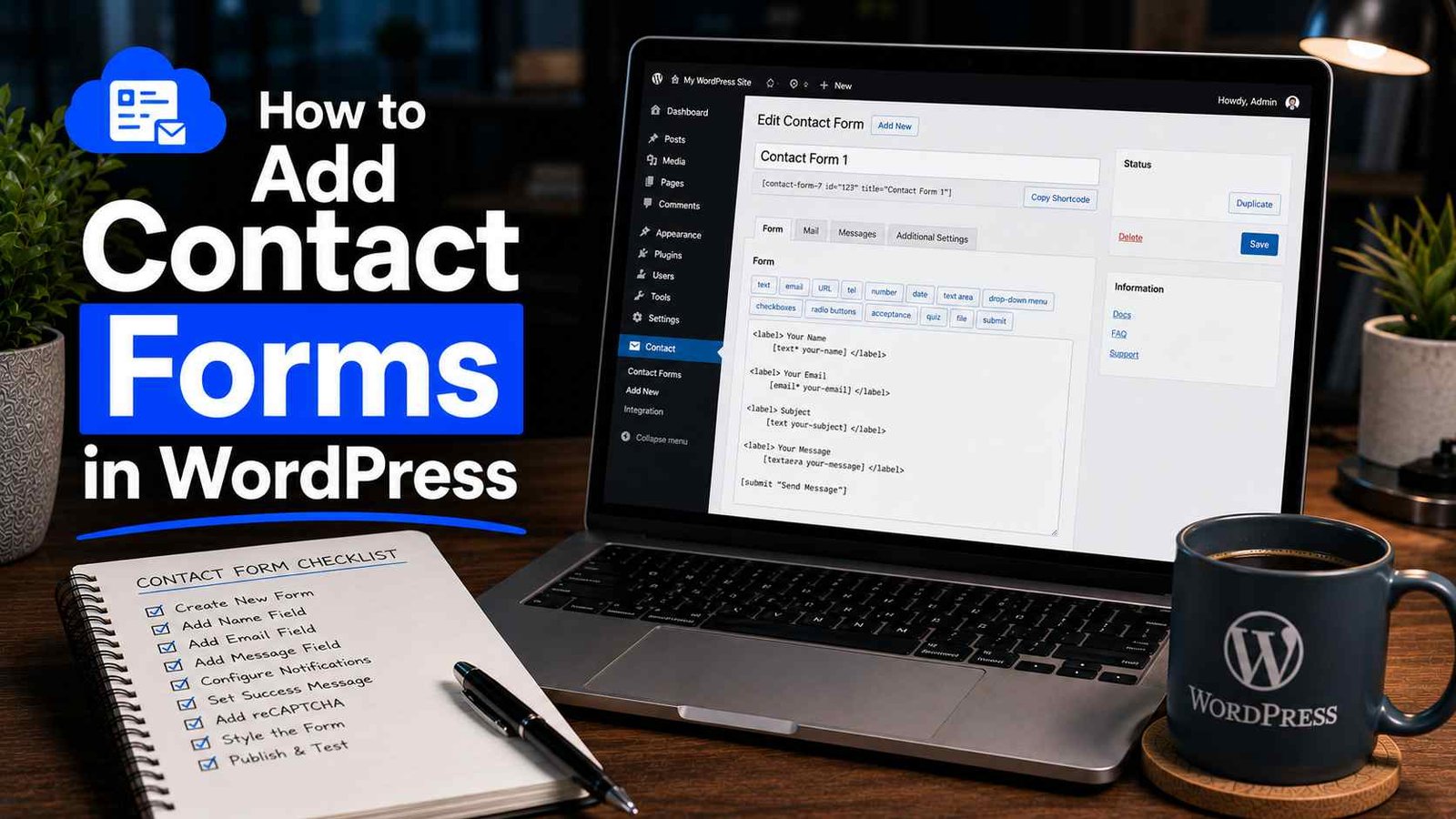

How to Add Contact Forms in WordPress
A client called me three months ago, pretty frustrated, asking why she hadn’t received a single inquiry from her website in almost two months.
Her site had decent traffic. People were clearly visiting the contact page based on the analytics. But somehow, zero form submissions were landing in her inbox. We dug into it together, and the problem turned out to be embarrassingly simple — her contact form was technically “working” in the sense that it submitted successfully, but the emails were getting silently swallowed by her hosting server because of a misconfigured email setup. She’d been losing leads for two months and had no idea.
That experience taught me something I now treat as non-negotiable: setting up a contact form on WordPress isn’t just about dragging a form builder onto a page. It’s about making sure the thing actually delivers messages to where they need to go, and testing it properly before you trust it.
Let me walk you through exactly how I set up contact forms now, including the testing step most tutorials skip entirely.
Picking the Right Contact Form Plugin
There are a handful of solid options, and which one makes sense depends on what you need.
WPForms — This is what I recommend to most beginners and small business clients. The drag-and-drop builder is intuitive, the free version covers basic needs well, and the paid tiers add things like file uploads, payment integration, and conditional logic.
Contact Form 7 — The old reliable. It’s been around forever, it’s completely free, and a huge number of WordPress sites still run on it. The downside is the interface feels dated and it requires a bit more comfort with basic shortcodes and settings compared to newer builders.
Fluent Forms — This has become my personal favorite for client projects over the last year or so. It’s fast, the free version is genuinely generous, and the conditional logic and multi-step form features rival paid competitors.
Gravity Forms — The premium powerhouse. If you need complex forms with advanced logic, integrations, or multi-page workflows, Gravity Forms handles it well. It’s paid-only though, starting around $59/year.
For most people just wanting a basic “name, email, message” contact form, any of these will work fine. I’ll walk through the process using WPForms since it’s the most beginner-friendly, but the general steps apply across all of them.
Step-by-Step: Setting Up a Contact Form
Step 1: Install the Plugin
From your WordPress dashboard, go to Plugins → Add New Plugin. Search for “WPForms” (or whichever plugin you’ve chosen), click Install Now, then Activate.
Step 2: Create Your First Form
After activating, you’ll see a new WPForms menu item in your sidebar. Click Add New.
You’ll get a choice of templates. For a basic contact page, select “Simple Contact Form.” It comes pre-built with Name, Email, and Message fields, which covers what most small sites actually need.
Step 3: Customize the Fields
This is where I’d encourage you to think about what you actually need versus what looks impressive. I’ve seen contact forms with 12 fields that scare visitors away before they hit submit.
For most sites, stick to:
- Name
- Subject (optional, but helpful for sorting inquiries)
- Message
If you’re running a service-based business, you might add a dropdown for “What service are you interested in?” — but resist the urge to ask for everything upfront. You can always follow up by email for more details once someone’s reached out.
Step 4: Set Up Notifications (The Part Everyone Skips)
Click on the Settings → Notifications tab within the form builder. This controls where submitted form data actually gets sent.
By default, it sends to the WordPress admin email. Double-check this is the correct email address, especially if you set up the site for a client and the admin email is still set to your own.
I always recommend adding a confirmation email back to the person who submitted the form too, under the Confirmations tab. Something simple like “Thanks for reaching out, we’ll respond within 24 hours” makes a much better impression than total silence after hitting submit.
Step 5: Add the Form to Your Page
Once your form is built, copy the embed option. In WPForms, you click Embed, choose or create the page you want it on, and it inserts automatically using a WordPress block.
If you’re using a different plugin, you’ll usually get a shortcode (like [contact-form-7 id="123"]) that you paste into a page or widget area instead.
Step 6: Test It — Actually Test It
This is the step that would have saved my client two months of lost leads.
Go to your live contact page, fill out the form like a real visitor would, and submit it. Then check:
- Did you receive the email in your actual inbox? (Check spam/junk folders too)
- Did the confirmation message display correctly?
- If you set up an autoresponder, did that email arrive?
Don’t just trust that it worked because the page showed a “success” message after submission. That message often shows up regardless of whether the email actually delivered.
The Email Delivery Problem (Why Forms “Work” But Emails Don’t Arrive)
This is the technical part that caused my client’s issue, and it’s worth understanding even if you’re not technical.
WordPress, by default, uses a function called wp_mail() to send emails, including contact form notifications. Many hosting servers don’t handle this reliably — emails sent this way often get flagged as spam or rejected entirely by receiving mail servers because they don’t have proper authentication.
The fix is using a proper SMTP service instead of relying on your server’s default mail function. Here’s how I set this up now on every site:
- Install a free plugin called WP Mail SMTP
- Connect it to a reliable email sending service — I usually use Google Workspace (if the client already has it) or SendGrid for a free-tier option that handles decent volume
- Follow the plugin’s setup wizard, which walks you through authenticating with whichever service you choose
- Send a test email directly through the plugin’s testing tool to confirm it’s working before trusting your contact form
After my client’s incident, I now add WP Mail SMTP to literally every site I build, before even touching the contact form. It takes about 10 minutes and prevents the exact problem she ran into.
Real Example: How I Set This Up for a Recent Client
I built a contact page for a local accounting firm a few months back. Here’s exactly what I did:
- Installed Fluent Forms (their preference based on what they’d used before)
- Built a simple form: Name, Email, Phone, Service Needed (dropdown), Message
- Set notifications to go to two email addresses — the office manager and the owner, since they wanted both kept in the loop
- Installed WP Mail SMTP and connected it to their existing Google Workspace account
- Added a confirmation message letting people know they’d hear back within one business day
- Tested the entire flow three times from different email addresses before considering it done
That last point matters — testing from different email addresses helps catch any weird filtering issues that might only happen with certain providers like Gmail versus Outlook.
Common Mistakes to Avoid
Not testing after setup. This is the single biggest mistake, and it’s exactly what cost my client two months of leads. Always submit a real test before considering the form “done.”
Forgetting spam protection. Without basic spam protection, you’ll eventually get flooded with junk submissions. Most form plugins include built-in honeypot fields or reCAPTCHA integration — make sure it’s turned on.
Using the default WordPress mail function without SMTP. As covered above, this is the silent killer of contact form reliability.
Making the form too long. Every extra field reduces the chance someone actually finishes filling it out. Keep it as short as the situation reasonably allows.
Not checking mobile responsiveness. A huge chunk of contact form submissions happen on mobile. Always check how your form looks and behaves on a phone screen before considering the setup complete.
Forgetting to update the recipient email after site changes. If you transfer a site to a client or change admin accounts, double-check the notification settings still point to the right inbox.
Final Thoughts
A contact form feels like one of those tiny, boring details on a website — until it’s the one thing standing between a potential customer and an actual conversation with your business. My client’s two-month gap in leads is proof of how quietly these things can fail without anyone noticing.
Setting one up properly takes maybe 20 extra minutes compared to just dragging a form onto a page and walking away. Test it, set up proper email delivery with SMTP, and keep it simple enough that people actually want to fill it out. That’s really all it takes to make sure your contact form does the one job it’s there for — actually getting messages to you.
Any Question? Contact Us