

For the first eight months of my blog, I had exactly one visitor from Google.
That visitor was me. Checking if my site was indexed.
I’d published 22 articles. I was writing consistently, the content was decent, and I genuinely thought that was enough. “Good content ranks” — I’d read that everywhere. What nobody told me was that good content with zero SEO setup is basically an unlisted YouTube video. It exists. Nobody sees it.
When I finally sat down and fixed the fundamentals, organic traffic started showing up within six weeks. Not thousands of visitors — but real people, finding my posts through search, reading them, clicking around. That feeling of seeing “Google / organic” in your analytics for the first time is genuinely hard to describe.
This guide is everything I wish someone had walked me through at the start. No jargon. No “10x your traffic overnight” promises. Just the actual stuff that moves the needle — specifically for WordPress.
First, Understand What SEO Is Actually Trying to Do
A lot of beginners treat SEO like a trick you play on Google. It’s not.
Google’s entire business model depends on showing people the most useful, relevant result for whatever they searched. Your job is to make it very easy for Google to understand what your content is about, confirm that it’s trustworthy, and present it in a way that loads fast and works on mobile.
That’s it. Every SEO tactic exists to serve one of those three goals.
Once that clicked for me, SEO stopped feeling like a dark art and started feeling like common sense.
Step 1: Install the Right SEO Plugin (And Only One)
WordPress doesn’t have built-in SEO tools, which is actually fine because the plugin options are excellent.
The two worth knowing about are Yoast SEO and Rank Math. Both are solid. I’ve used Yoast for years and switched to Rank Math about 18 months ago — the free version of Rank Math gives you features that Yoast charges for, which is a real advantage when you’re starting out.
Install one. Not both. Running two SEO plugins simultaneously causes conflicts and duplicate metadata, which actively hurts you.
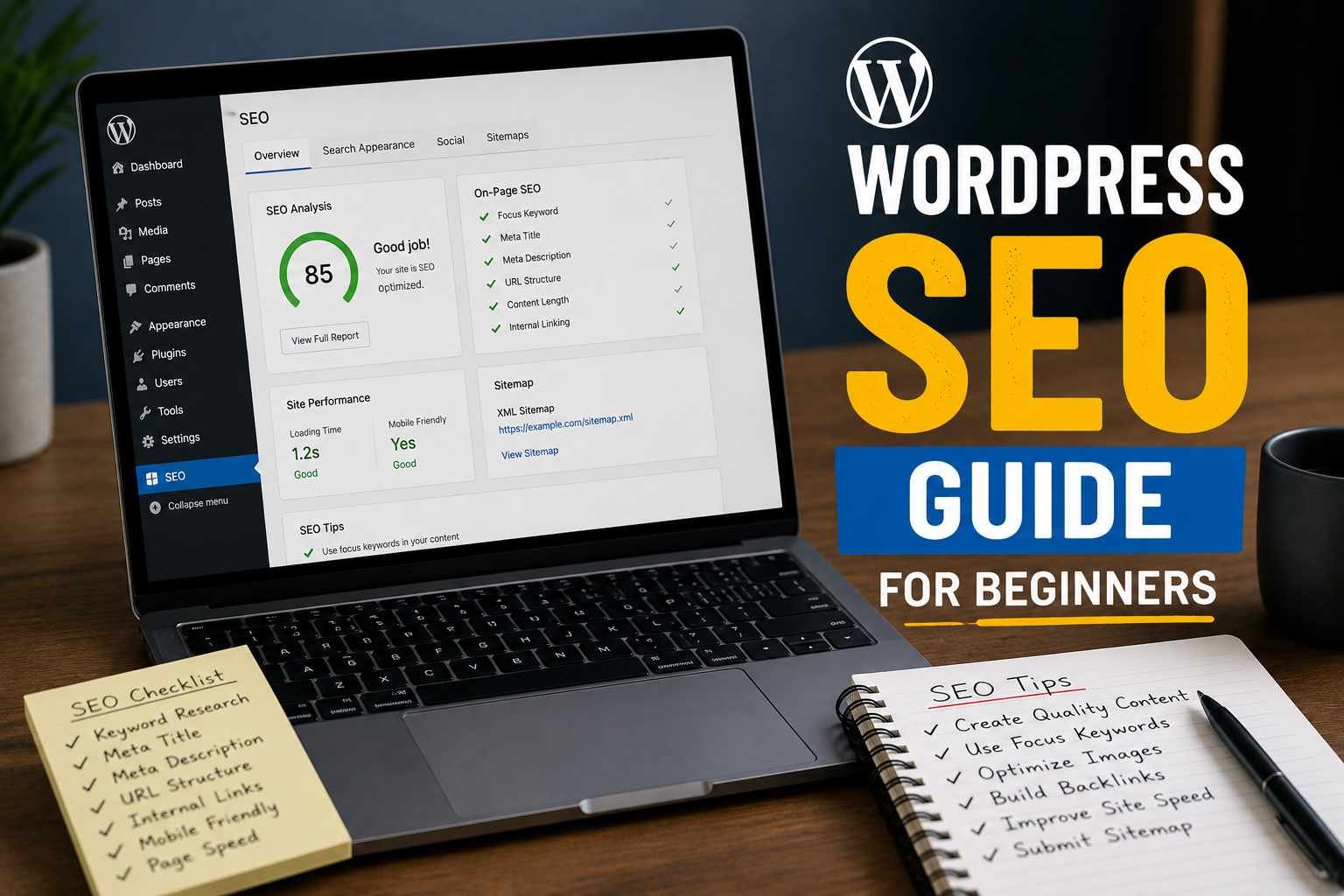
After installation, run through the setup wizard. It takes about ten minutes and handles a lot of the foundational stuff automatically — telling Google what type of site you have, setting up your sitemap, connecting to Google Search Console.
Speaking of which…
Step 2: Connect Google Search Console Immediately
Google Search Console is free, and it’s the single most important tool for understanding how your site performs in search. Not Ahrefs, not SEMrush — Search Console first.
Here’s what it does that nothing else can:
It tells you exactly what search queries people used to find your site. It shows you which pages Google has indexed (and which ones it hasn’t, and why). It alerts you to technical problems — broken pages, mobile issues, security flags — before they become serious.
To connect it, go to search.google.com/search-console, add your site, and verify ownership. If you’re using Rank Math or Yoast, there’s a direct integration option that makes verification a one-click process.
Do this before you publish your next post. I waited nine months. Don’t be me.
Step 3: Set Up Your Permalinks Correctly (Before You Have Too Many Posts)
This one is easy to fix at the start and painful to fix later.
By default, WordPress creates URLs that look like this: yoursite.com/?p=123
That’s terrible for SEO and for humans. Google wants to understand what a page is about from the URL itself.
Go to Settings → Permalinks in your WordPress dashboard and switch to Post Name. Your URLs will look like yoursite.com/your-post-title instead.
If your site is brand new, do this right now. If you already have posts published and traffic coming in, changing your permalink structure will break all your existing URLs — so tread carefully and set up redirects if you do switch.
Step 4: Learn Keyword Research (The Beginner Version)
I’m not going to tell you to spend $99/month on Ahrefs as a beginner. You don’t need to.
The free tools are genuinely enough to start:
Google itself is your first stop. Type your topic into the search bar and pay attention to the autocomplete suggestions. Those are real things real people are searching for. Scroll to the bottom of the search results page and look at “Related searches” — more gold there.
Google Search Console (once you’ve had it running for a few weeks) shows you what queries your existing content is already ranking for. Often, you’ll discover you’re on page 2 or 3 for something — and a small content update can push you to page 1.
Ubersuggest has a free tier that gives you keyword volume and difficulty data. It’s not as deep as paid tools, but for a beginner it’s more than enough.
The one keyword concept that changed everything for me: search intent.
Before I write any post now, I Google the keyword I’m targeting and look at the top 5 results. Are they listicles? Step-by-step guides? Product comparisons? That tells me what format Google thinks best serves someone searching that term. Fighting search intent is a losing battle — match it instead.
Step 5: Optimize Your Posts as You Write Them
This doesn’t have to be complicated. Here’s the checklist I actually use:
Title tag — Include your main keyword, keep it under 60 characters, and make it sound like something a real person would write. “Best Budget Laptops for Students in 2026” is better than “Budget Laptops 2026 | Cheap Laptops Students.”
Meta description — This is the snippet that shows under your title in search results. Rank Math and Yoast both give you a field for this. Write 150–160 characters that explain what the post covers and give someone a reason to click. It doesn’t directly affect your ranking, but it affects your click-through rate, which does.
Headings (H1, H2, H3) — Your post title is your H1. Use H2s for major sections and H3s for subsections within those. This isn’t just for SEO — it makes your content scannable, which keeps people reading.
First paragraph — Try to mention your main topic naturally within the first 100 words. Not forced, not stuffed — just natural. Google reads the beginning of your content with extra attention.
Image alt text — Every image on your site should have a brief description in the alt text field. It helps Google understand the image, it helps visually impaired readers, and it’s a five-second task that most beginners skip entirely.
Internal links — Link to your other relevant posts from within new posts. This keeps readers on your site longer and helps Google understand the relationship between your content. I aim for at least 2–3 internal links per post.
Step 6: Make Sure Your Site Is Fast Enough
Page speed is a ranking factor. More importantly, it’s a reader experience factor — people leave slow sites, and Google notices that.
The fastest way to check your current speed: go to pagespeed.web.dev, enter your URL, and run the test. Focus on the mobile score — it’s almost always lower, and mobile is what Google primarily uses to evaluate your site.
The three things that make the biggest speed difference for most WordPress blogs:
Caching plugin — Install WP Rocket (paid, worth it) or LiteSpeed Cache (free, excellent). Caching serves pre-built versions of your pages to visitors instead of rebuilding them from scratch every time. The speed difference is dramatic.
Image compression — Large uncompressed images are the number one reason WordPress blogs load slowly. Install Smush or ShortPixel, and it’ll compress your images automatically as you upload them. Alternatively, run your images through Squoosh.app before uploading.
A decent host — If you’re on the cheapest shared hosting plan available, there’s a ceiling to how fast your site can be regardless of what else you do. SiteGround, Cloudways, and Hostinger are all reasonable starting points that won’t bottleneck your speed.
Step 7: Make Your Site Secure (HTTPS)
If your site URL starts with http:// instead of https://, fix this today.
Google flags non-HTTPS sites as “Not Secure” in Chrome, which immediately destroys visitor trust. It’s also a minor ranking signal.
Most hosts offer free SSL certificates through Let’s Encrypt. In your hosting control panel, look for “SSL” or “HTTPS” settings and enable it. If you’re using a managed host like Cloudways or WP Engine, it’s usually one click.
After enabling HTTPS, install the Really Simple SSL plugin — it handles the redirect from http to https automatically so you don’t end up with mixed content warnings.
Mistakes I Made That I Want You to Skip
Chasing domain authority too early. I spent weeks trying to get backlinks before my site had more than 10 posts. Total waste of time. Write content first, build links later.
Targeting keywords that were way too competitive. My second blog post was titled “Best Laptops 2022.” I was competing with The Verge and CNET. Aim for specific, lower-competition keywords when you’re starting out — “best laptops for architecture students under $1000” is more realistic than “best laptops.”
Publishing and forgetting. SEO isn’t a one-time thing. I update my older posts every few months — freshen the date, update any outdated information, add a section that answers a related question. Updated content often climbs in rankings without any additional link building.
Ignoring Google Search Console for months. Again — set it up, check it weekly. It’ll show you opportunities you’d never find otherwise.
The Honest Timeline
I know you want to know how long this takes. Here’s what’s realistic:
Most bloggers start seeing meaningful organic traffic 4–6 months after implementing proper SEO basics. Some niches take longer. Some lucky ones see results faster. The blogs that fail are almost never the ones with bad content — they’re the ones where the writer gave up at month 3 because the numbers weren’t moving yet.
SEO is a compounding game. The posts you optimize today may not rank for three months, but when they do, they bring traffic every single day without you doing anything extra. That’s the part that makes it worth it.
Where to Go From Here
Once you’ve got the basics locked in — Search Console connected, permalink structure sorted, posts optimized, site fast — start learning about:
- E-E-A-T (Experience, Expertise, Authoritativeness, Trustworthiness): Google’s framework for evaluating content quality, especially important for health, finance, and advice content.
- Building backlinks: Getting other sites to link to yours is still one of the strongest ranking signals. Guest posting and creating genuinely shareable resources are the cleanest ways to do it.
- Core Web Vitals: Google’s specific speed and experience metrics. PageSpeed Insights will show you exactly where you stand.
But don’t let any of that overwhelm you right now. The fundamentals I’ve laid out above will put you ahead of the majority of bloggers who start WordPress sites and never touch a single SEO setting.
Get those right first. Then go deeper.
You’ve got this.
Any Question? Contact Us