
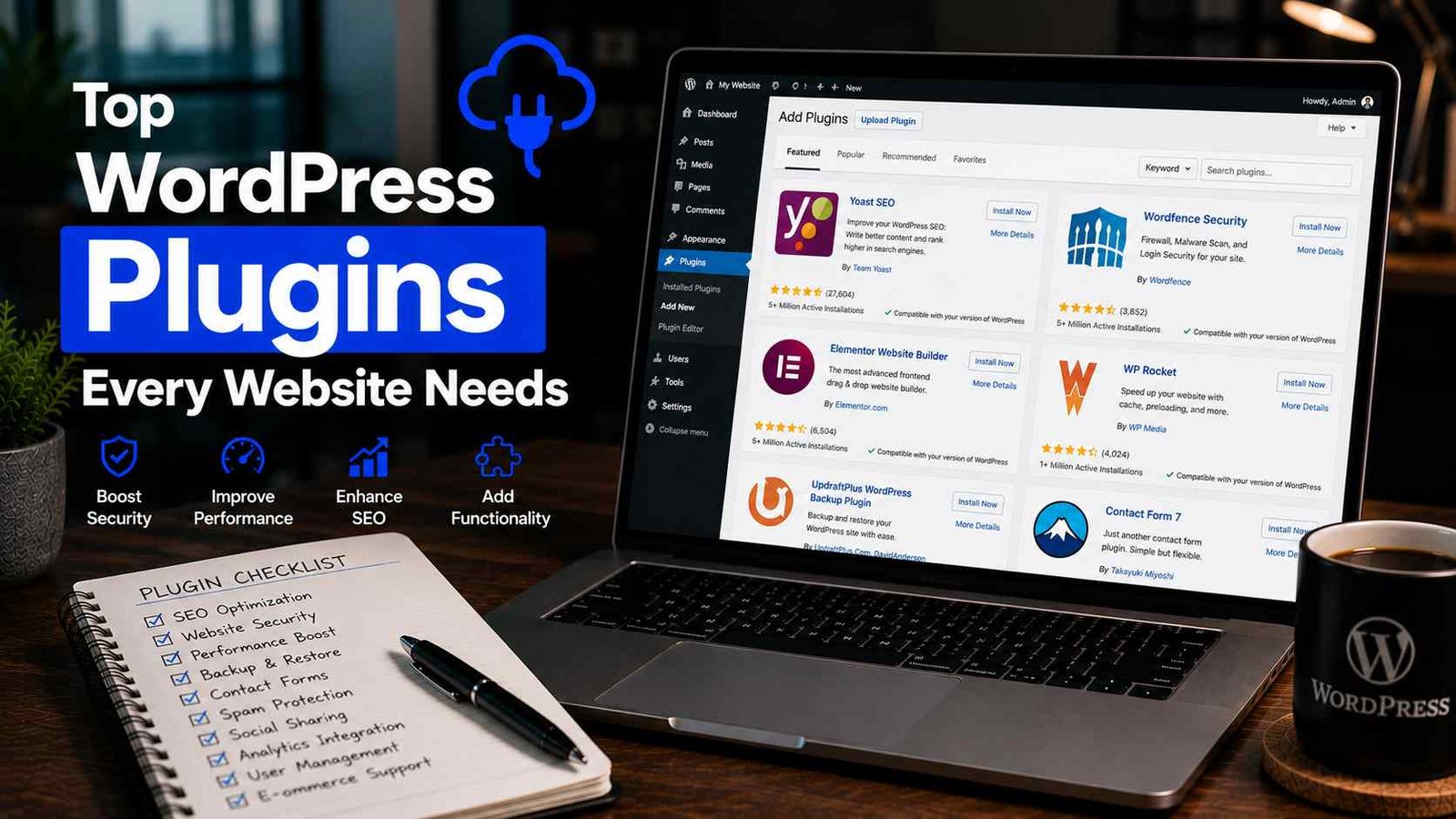

Top WordPress Plugins Every Website Needs
The worst morning of my blogging life started with a Google Search Console email.
“This site may be hacked.” That was the subject line. I opened it half-asleep and my stomach dropped. My blog — the one I’d been building for almost two years — was flagged for distributing malware. Google had already started removing my pages from search results.
It took me three days, two support tickets, and one very expensive developer to clean it up. The culprit? An outdated plugin I hadn’t touched in months, sitting there with a known vulnerability I never patched because I wasn’t paying attention.
That experience changed how I think about WordPress plugins completely. Before the hack, I treated plugins like apps on my phone — install them when they seem useful, forget about them, never update. After the hack, I got serious. I audited everything, stripped out what I didn’t need, and built a proper “core plugin stack” that I now install on every WordPress site I set up.
This is that stack. Every plugin here has earned its place through actual use — not because it’s popular on a top-10 list, but because I’ve felt the pain of not having it.
First, a Rule I Wish Someone Had Told Me Earlier
Before we get into the list, this is important: more plugins is not better.
Every plugin you install is a potential security vulnerability, a potential performance hit, and one more thing that can break when WordPress updates. I’ve seen WordPress sites with 47 active plugins that barely loaded. The goal isn’t a complete collection — it’s a lean, purposeful stack where every plugin does something you actually need.
I currently run 11 plugins on my main blog. That’s it. And my site does everything I need it to do.
With that said — here are the categories every site needs covered, and the specific plugins that do the job best.
1. Security — Don’t Skip This, Ever
After my hack, security became the first thing I set up on any new WordPress installation. Before I even choose a theme.
Wordfence Security is what I use and what I recommend. The free version is genuinely powerful — it includes a firewall, a malware scanner, login security, and real-time alerts when something suspicious happens.
After I install Wordfence, the first things I configure:
- Enable the Web Application Firewall and set it to “Extended Protection” mode
- Turn on login attempt limits (I set it to lock out an IP after 5 failed attempts)
- Schedule a weekly malware scan
- Turn on two-factor authentication for the admin account
That last one — 2FA — is something most people skip because it adds a step to logging in. Skip it anyway? Your admin account becomes the easiest thing in the world to brute-force. I learned this the hard way.
Alternative worth knowing: Solid Security (formerly iThemes Security) is another solid option, especially if you find Wordfence’s interface overwhelming at first. Both are free with optional premium upgrades.
2. Backups — Because “It Won’t Happen to Me” Is Not a Strategy
The week before my site got hacked, my hosting company had a server issue that took my site down for six hours. I had no backup. I was just lucky the data was still there when they fixed it.
UpdraftPlus is the backup plugin I’ve used ever since. The free version lets you back up your entire site — files and database — and send those backups automatically to Google Drive, Dropbox, Amazon S3, or just leave them on your server (though I’d recommend off-site storage).
My current setup: automatic backups every week, stored in Google Drive, kept for 4 weeks. For a site I update daily, I also run a daily database-only backup since the database is where all my posts and comments live.
Setup takes about 10 minutes. Once it’s running, you never think about it — until the day you desperately need it, at which point you’ll be extremely glad it’s there.
One thing people miss: test your backups. Once every couple of months, I do a test restore on a staging site just to confirm the backup files actually work. A backup you’ve never tested is a backup you don’t fully trust.
3. SEO — Help Google Understand Your Content
If you’ve read my WordPress SEO guide, you know I’m a fan of Rank Math. The free version gives you more than most paid SEO plugins charge for, which is a weird sentence to write but genuinely true.
What Rank Math handles for you automatically after setup:
- XML sitemap generation (tells Google about all your pages)
- Meta titles and descriptions for every post
- Open Graph tags (controls how your content looks when shared on social media)
- Schema markup (helps Google display rich snippets in search results)
- Broken link detection
- Redirect manager
That last two are features most people don’t realize they need until they’re staring at a 404 page on a post they deleted six months ago that still has backlinks pointing to it.
If you’re already using Yoast SEO, you don’t need to switch — it’s excellent and handles everything above too. My only gripe with Yoast is that some features in the free version feel artificially limited to push you toward Yoast Premium. Rank Math’s free tier is more generous.
The one rule for this category: install exactly one SEO plugin. Not two. Running Yoast and Rank Math simultaneously creates duplicate metadata that confuses Google and can actually hurt your rankings. Pick one and remove the other completely.
4. Performance & Caching — Because a Slow Site Loses Readers
Page speed affects your SEO ranking, your reader experience, and your bounce rate. A site that loads in 4 seconds loses a huge chunk of visitors before they even see your first paragraph.
Caching is the fastest way to fix this. A caching plugin generates static HTML files of your pages and serves those to visitors instead of rebuilding the page from scratch on every single visit. The difference in load time can be dramatic.
WP Rocket is the best caching plugin I’ve used. It’s not free ($59/year), but it’s the one case where I think the paid option is genuinely worth it for most site owners. The reason: it’s the only plugin I’ve installed that made a significant speed difference without requiring me to understand what “minification” or “lazy loading” actually means. You install it, turn on the recommended settings, and it just works.
If you’re not ready to spend money yet, LiteSpeed Cache is free and excellent — but only if your host runs LiteSpeed server technology (many shared hosts do; check with your host). For everyone else, W3 Total Cache is a capable free alternative, though it has more settings to configure than you probably want to deal with early on.
Beyond caching, the other big speed factor is images. Large, unoptimized images are responsible for slow loading on more WordPress sites than any other single cause.
Smush (free) or ShortPixel (freemium) will automatically compress images as you upload them. I use ShortPixel — the free tier gives you 100 image credits per month, which is enough for most bloggers, and the compression quality is noticeably better than Smush in my testing.
5. Contact Forms — Don’t Use Email Links
Putting your raw email address on a contact page is an invitation for spam bots to harvest it. I made this mistake on my first site and was getting 200+ spam emails a day within a month.
WPForms Lite (free) is the easiest contact form solution I’ve found. You get a drag-and-drop form builder, a basic contact form template, and spam protection — all without writing a line of code.
For most blogs, the free version is completely sufficient. If you need more advanced features like conditional logic, payment integration, or multi-page forms, WPForms Pro handles all of that.
Alternatively: If you’re already using Kadence theme, their free Kadence Form Block handles basic contact forms directly in the block editor without any additional plugin. I mention this because one of my goals is always to keep the total plugin count low — if your theme already does something, don’t add a plugin to duplicate it.
6. Anti-Spam — Your Comment Section Will Thank You
If you have comments enabled on your blog (and most bloggers do, at least early on), you will get spam. A lot of it. Without protection, your comment section becomes a graveyard of “Great post! Check out my casino site!” messages.
Akismet Anti-Spam comes pre-installed with WordPress and is free for personal blogs. It filters out spam comments automatically, and it’s remarkably accurate — I’ve had it running for two years and maybe seen 5 spam comments slip through in that time.
Just activate it, get a free API key from Akismet.com, and forget about it.
7. Analytics — Know What’s Actually Happening on Your Site
Google Analytics is the industry standard for website analytics, but the default way of connecting it to WordPress (manually adding code to your header) is fiddly and easy to mess up.
MonsterInsights (free version) handles the Google Analytics connection cleanly and shows you a simplified dashboard directly inside WordPress. You can see your top posts, traffic sources, and basic visitor data without logging into a separate Google Analytics account every time.
The free version is genuinely useful. The paid version adds eCommerce tracking, form tracking, and more advanced reports — but most bloggers don’t need that for a long time.
One thing I’d add: connect Google Search Console to your Analytics account as well. It’s free, takes 5 minutes to set up, and gives you keyword-level data (what people actually searched for to find your posts) that Analytics alone doesn’t show you.
8. Redirects — The Plugin Nobody Thinks About Until They Need It
Every time you delete a page, change a URL, or restructure your site categories, you create potential 404 errors. Visitors land on a broken page, get confused, and leave. Google notices this and it can hurt your rankings over time.
Redirection (free) is a simple plugin that lets you set up redirects — “when someone tries to visit this old URL, send them here instead.” It also automatically detects 404 errors on your site and logs them so you can see which broken links are causing problems.
I didn’t install this until a year into blogging, and when I finally did and looked at the 404 log, I was horrified. There were dozens of broken links that had been losing me traffic for months — mostly because I’d changed some URLs early on without redirecting the old ones.
Plugins I’ve Uninstalled and Why
Jetpack — It’s developed by Automattic (the company behind WordPress), so it feels official. But Jetpack is a massive plugin that tries to do everything: security, backups, SEO, social sharing, analytics, spam protection. The result is a bloated plugin that overlaps with better, more focused alternatives. I installed it on my first site and it added almost a full second to my load time. Uninstalled.
Social sharing plugins (most of them) — I’ve tried probably eight different social sharing plugins. Most of them add unnecessary JavaScript and slow down your pages. I now use simple sharing links built into my theme’s footer and honestly my share counts haven’t changed.
Duplicate Post — I installed this to quickly clone posts as templates. Useful in theory, led me to accidentally publishing half-finished duplicate posts twice. Uninstalled after the second incident.
The Starter Stack in One Place
Here’s exactly what I’d install on a brand new WordPress blog, in order:
- Wordfence Security — security first
- UpdraftPlus — set up backups before anything else
- Rank Math — SEO foundation
- WP Rocket or LiteSpeed Cache — performance
- ShortPixel — image compression
- WPForms Lite — contact form
- Akismet — spam protection (already installed, just needs activation)
- MonsterInsights — analytics connection
- Redirection — 404 management
That’s nine plugins. A lean, purposeful stack that covers every critical function without unnecessary overlap.
You can always add more as your site grows and you hit specific limitations. But starting lean means you understand what each plugin does, you notice immediately if something causes a conflict, and your site stays fast.
The Bigger Lesson
That hacked site taught me that WordPress is powerful precisely because it’s extensible — you can add almost any functionality you want. But that openness cuts both ways. Every plugin you add is a door into your site. Keep fewer doors, lock them properly, and check on them regularly.
Update your plugins every week. Seriously — it takes two minutes in the dashboard and it closes the exact kind of vulnerability that got me hacked. It’s not glamorous advice, but it’s the most important thing on this entire page.
Build smart, keep it lean, and actually maintain what you install. Your future self will be grateful.
Any Question? Contact Us