
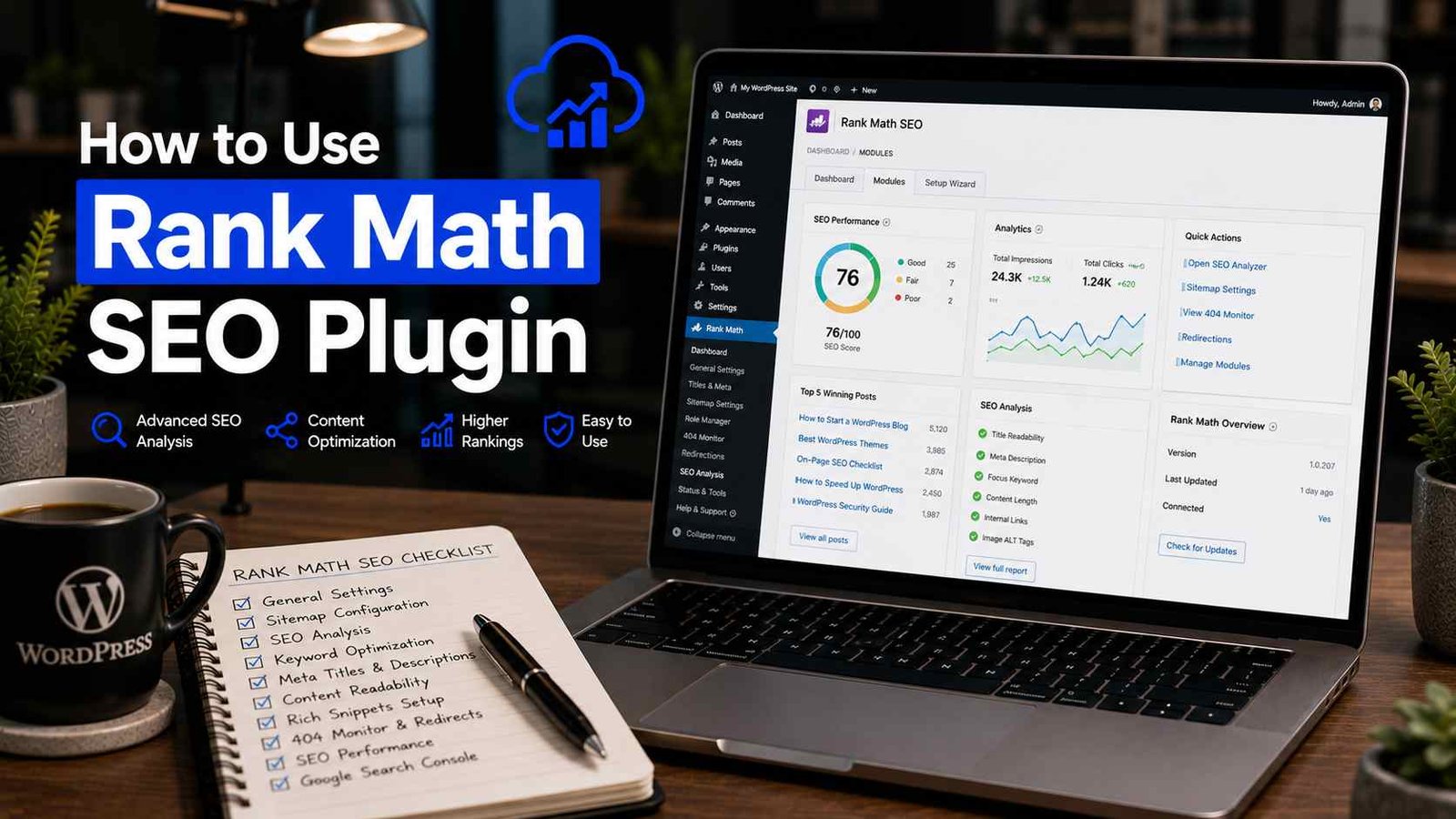

How to Use Rank Math SEO Plugin
I switched from Yoast to Rank Math on a Tuesday afternoon thinking it would take an hour.
It took four hours, two cups of coffee, and one accidental deletion of my entire sitemap. Not because Rank Math is complicated — it’s actually the opposite. I just had no idea how many settings I’d been ignoring for years on Yoast until Rank Math showed me what was possible.
That was about 18 months ago. Since then I’ve set up Rank Math on six different WordPress sites — my own blog, three client sites, and two niche projects — and I can confidently say it’s the best free SEO plugin available for WordPress right now. Not because I’m a fanboy, but because the free version does things that other plugins charge you for.
This guide covers how I actually set it up and use it day-to-day. Not just “click here, click there” — but the reasoning behind the decisions, the mistakes I made, and what actually made a difference in my rankings.
Why Rank Math Over Everything Else
Quick context before we dive in, because “just use Rank Math” without explanation is lazy advice.
I used Yoast SEO for three years. It’s a great plugin. But a few things bothered me:
The free version withholds features that feel basic — like the ability to optimize a post for multiple keywords, or the redirect manager, or schema markup beyond the basics. With Yoast, you hit the paywall constantly.
Rank Math gives you all of that in the free version. Multiple focus keywords per post. A full redirect manager. Rich schema markup. An SEO analysis tool that actually tells you what’s wrong instead of just flashing red dots.
The catch: Rank Math has more settings, which means more rope to hang yourself with if you’re not careful. That’s what this guide is for.
Step 1: Install It the Right Way
Go to Plugins → Add New in your WordPress dashboard, search for “Rank Math SEO,” install, and activate.
If you’re switching from Yoast, Rank Math will detect it and offer to import all your existing SEO data — meta titles, descriptions, redirects, focus keywords. Do this. It takes about two minutes and means you don’t lose the SEO settings you’ve already configured on existing posts.
After activation, the Setup Wizard launches automatically. Don’t skip it. It handles a lot of foundational configuration that would take much longer to set up manually.
The wizard asks you a few key questions:
“How do you want to use Rank Math?” — Choose “Advanced Mode” even if you’re a beginner. The Easy Mode hides settings you’ll eventually need, and switching later is annoying. Better to have access to everything upfront.
“What type of website is this?” — Blog, news site, local business, etc. This affects what schema markup Rank Math applies by default. Choose accurately.
Connect your Google account — This step links Rank Math to Google Search Console and Google Analytics. Do it. It pulls keyword and performance data directly into your WordPress dashboard so you can see how posts are ranking without switching tabs.
Step 2: General Settings You Actually Need to Configure
Once the wizard is done, go to Rank Math → General Settings and work through these sections:
Links
Turn on “Redirect Attachments” — this sends people who land on image attachment pages (a WordPress quirk that creates useless pages) directly to the post the image belongs to. Without this, you have hundreds of thin, near-empty pages getting indexed for no reason.
Turn on “Strip Category Base” if you use categories in your URLs. By default WordPress adds “/category/” to category URLs (yoursite.com/category/tech/). Stripping it gives you cleaner URLs (yoursite.com/tech/).
Breadcrumbs
Enable these if your theme supports them. Breadcrumbs show Google the structure of your site and can appear as navigation in search results, which tends to increase click-through rates. Most modern themes (Kadence, Astra, GeneratePress) support Rank Math breadcrumbs natively.
Images
Turn on “Add missing ALT attributes” and “Add missing TITLE attributes.” This automatically fills in basic alt text for images that don’t have any. It’s not a substitute for writing real descriptive alt text on your important images, but it catches the gaps.
Step 3: Configure Your Titles and Meta Format
Go to Rank Math → Titles & Meta. This is where you set the default format for how your posts appear in Google search results.
The most important settings here:
Separator — The character between your post title and site name in search results. I use a dash (—). Small detail, but pick something and be consistent.
Homepage SEO — Set a specific title and meta description for your homepage. Don’t leave these as defaults. Your homepage title should include your main keyword and describe what your site is about in under 60 characters.
Posts — The default title format for blog posts. I use %title% %sep% %sitename% which produces something like “How to Make Cold Brew Coffee — The Brew Lab.” Clean and consistent.
Noindex settings — Scroll down and look at what Rank Math is set to noindex by default. I noindex: date archives, author archives (unless you have multiple authors), and tag archives. These are often thin, duplicate-ish pages that dilute your site’s crawl budget.
Step 4: Set Up the Sitemap
Go to Rank Math → Sitemap Settings.
Make sure the sitemap is enabled. Your sitemap URL will be yoursite.com/sitemap_index.xml — remember this because you’ll need it for Search Console.
Choose what to include. I include: posts, pages, and categories. I exclude: tags, author pages, date archives, and any page I’ve set to noindex.
After setting this up, go to Google Search Console, find the Sitemaps section, and submit your sitemap URL. This tells Google to actively crawl and index your content instead of waiting to discover it organically.
Step 5: Using Rank Math When You’re Actually Writing Posts
This is the part most guides rush through, but it’s where Rank Math earns its place every day.
When you’re writing or editing a post in WordPress, look for the Rank Math panel — it’s usually in the right sidebar, represented by a small graph icon. Click it.
Setting Your Focus Keyword
Type your primary keyword into the “Focus Keyword” field. This is the main phrase you want the post to rank for.
Rank Math will immediately start analyzing your content and give you a score out of 100. Don’t obsess over getting 100 — I aim for 75-85 and focus on whether the suggestions actually make my content better, not just technically “optimized.”
The free version lets you add up to 5 focus keywords per post. I typically use 2-3 — one primary keyword and one or two variations or related phrases.
The Score — What It Actually Means
Rank Math’s score tracks things like:
- Is your focus keyword in the title?
- Is it in the first paragraph?
- Is it in at least one H2 or H3 heading?
- Does your content have enough words for the topic?
- Do you have internal and external links?
- Is your meta description written and does it include the keyword?
Here’s my honest take: the score is a useful checklist, not a law. I’ve published posts that scored 62 and ranked on page one. I’ve published posts that scored 91 and never moved past page three. The score tells you whether you’ve covered the basics — it doesn’t predict rankings.
Writing Your Meta Title and Description
Below the focus keyword field, you’ll see the Snippet Editor — a preview of how your post will look in Google search results.
Click on it to edit your meta title and meta description directly. The preview shows you exactly how it’ll appear in search.
For the title: include your focus keyword, keep it under 60 characters, and make it sound like something a real person wrote. “How to Make Cold Brew at Home (Without Any Special Equipment)” is better than “Cold Brew Coffee Recipe | Best Cold Brew Guide.”
For the description: aim for 150-155 characters. Tell the reader what they’ll get from clicking. Don’t just repeat the title.
Schema Markup
This is one of Rank Math’s standout free features. Click on the “Schema” tab in the Rank Math panel.
Schema markup is code that tells Google what type of content your page contains — a recipe, an article, a product review, an FAQ, a how-to guide. When Google understands the content type, it can display rich snippets in search results (star ratings, recipe cards, FAQ dropdowns, etc.).
For most blog posts, the default “Article” schema is fine. But if you’re writing a recipe, use the Recipe schema. If you’re writing a review, use the Review schema. If your post answers common questions, add an FAQ schema and watch for the FAQ rich snippet to appear in your search results over time.
I added FAQ schema to 8 older posts that were stuck on page 2. Three of them moved to page 1 within six weeks. Correlation isn’t causation — but I’ve repeated this enough times that I believe the schema markup helped.
Step 6: The Redirect Manager (Save This for When You Need It)
Go to Rank Math → Redirections.
This is your tool for managing 301 redirects — when you move a page, change a URL, or delete content that has backlinks pointing to it.
Anytime you change a post’s URL after it’s been published, come here immediately and create a redirect from the old URL to the new one. Takes 30 seconds. Skipping it means anyone who had the old link saved (including Google) hits a 404 error.
I also use this section to redirect old posts I’ve deleted to relevant newer content instead of just letting them 404. Better user experience, and you don’t lose whatever link equity was pointing at the old URL.
Step 7: Rank Math Analytics — What’s Worth Checking
If you connected your Google account during setup, go to Rank Math → Analytics.
The dashboard shows you:
- Total impressions and clicks from Google search (pulled from Search Console)
- Your top performing posts
- Keywords you’re ranking for and their positions
- Posts that have recently gained or lost ranking positions
The “Posts” tab is the most useful for day-to-day work. It shows every post with its current ranking position, impressions, and clicks. Sort by position and look for posts sitting at position 5-15 — these are your best optimization targets. A post ranking at position 8 is much easier to push to position 3 than a post on page 4.
Mistakes I’ve Made With Rank Math (So You Don’t Have To)
Obsessing over the score instead of the content. I spent an hour once rewriting an introduction three times to get my Rank Math score from 78 to 85. The post ranked the same regardless. Write for the reader, use the score as a basic sanity check, and move on.
Setting everything to index when it should be noindex. By default, some versions of Rank Math index pages that should probably be noindex — author archives, date archives, tag pages. Check your noindex settings early. Having hundreds of thin pages indexed can dilute your site’s authority.
Running Rank Math and Yoast simultaneously. I know I mentioned this before, but it deserves repeating here specifically: during my migration from Yoast to Rank Math, I had both active for about 20 minutes while I was importing settings. That’s enough time for duplicate meta tags to be generated. Deactivate Yoast completely before activating Rank Math.
Ignoring the redirect manager after URL changes. I changed the slug on a post that had decent backlinks pointing to it. Forgot to set up a redirect. Lost about 40% of that post’s traffic over the following month as the old URL started returning 404 errors. Set up the redirect immediately — there’s no “do it later.”
Not filling in the Schema for every post type. For the first few months I just left everything on “Article” schema. Once I started using specific schema types (HowTo for tutorials, FAQ for question-based posts, Review for comparison articles), my rich snippet appearances in search results increased noticeably.
The Settings I Check Every Month
Once everything is set up, Rank Math doesn’t need much maintenance. But I have a quick monthly routine:
Check the Analytics dashboard for posts that have dropped in rankings. If something that was position 4 is now at position 11, that’s a signal to update the content.
Look at the 404 Monitor (under Rank Math → Redirections → 404 Monitor) for broken URLs that are getting traffic. If something is showing up there consistently, set up a redirect.
Review any Search Console warnings that appear in the Rank Math dashboard. These show up as alerts when Google has flagged an issue with your site.
That’s genuinely it. Maybe 20 minutes a month once it’s properly configured.
The Real Value of Rank Math
Rank Math isn’t magic. No SEO plugin is. Good content on a well-structured site will outrank mediocre content with perfect Rank Math scores every single time.
What Rank Math does is remove the friction between good content and good SEO practice. It reminds you to write a meta description. It flags when your title is too long. It makes adding schema markup something a beginner can do in two clicks.
That stuff adds up. Not in a dramatic, traffic-overnight way — but consistently, over months, across dozens of posts, the small things Rank Math keeps you accountable for create a measurably better-optimized site.
Set it up properly once, use it thoughtfully on every post, and let the compounding do its work.
Any Question? Contact Us