

I remember the exact moment I decided I was done with shared hosting.
It was 2 AM. My client was texting me in a panic because their WooCommerce store had gone completely down — on Black Friday. I logged into cPanel, saw 500 errors everywhere, and when I contacted the host’s support, I got the standard “your site is using too many resources” email.
After that night, I spent about two weeks researching managed WordPress hosting options. I looked at WP Engine, Kinsta, SiteGround, and eventually landed on Cloudways. That was over two years ago, and I’ve since migrated more than a dozen WordPress sites to it. So this is not a surface-level overview — this is what I actually learned.
What Cloudways Actually Is (And Isn’t)
First, let’s clear something up that confused me early on.
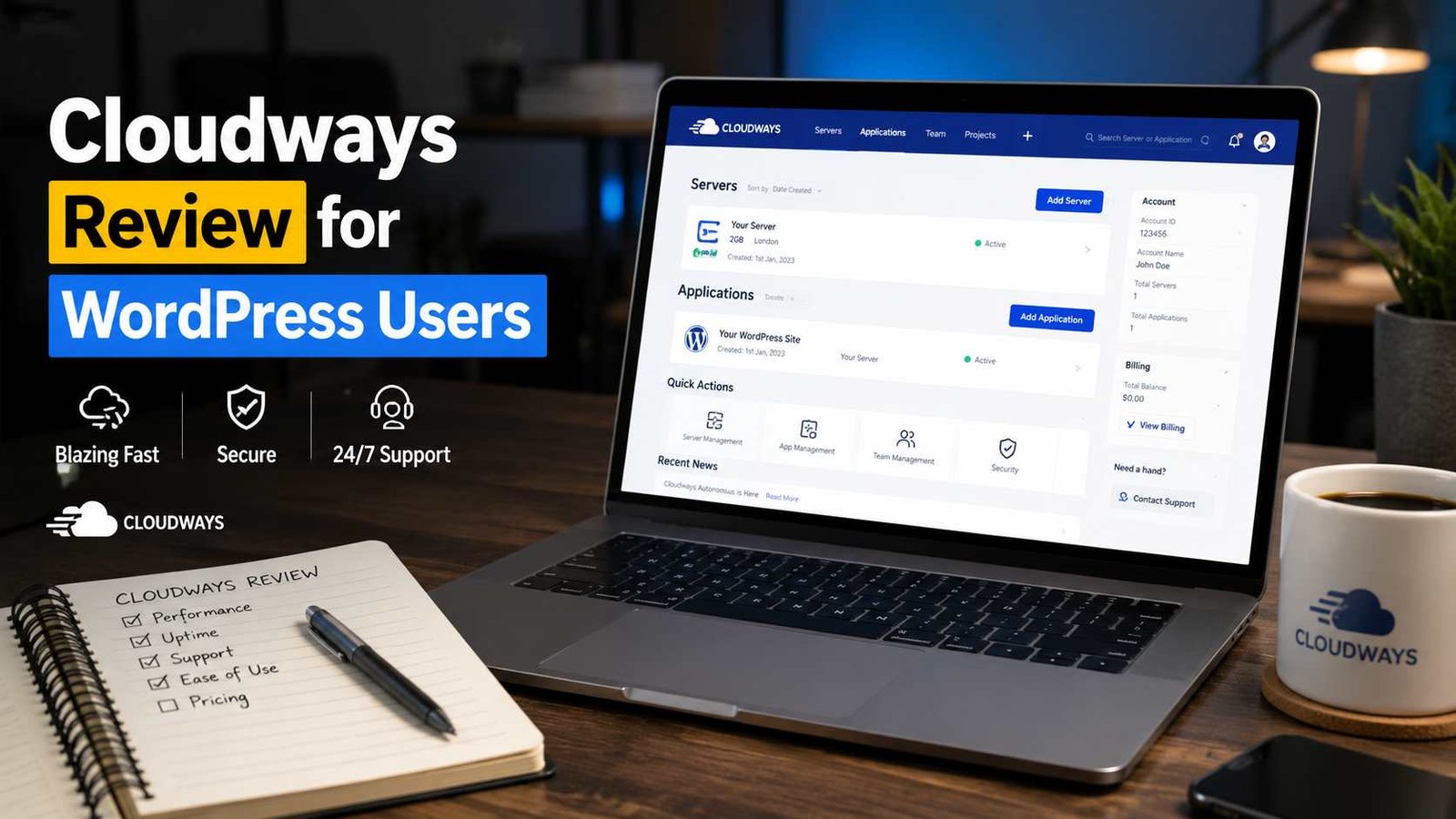
Cloudways is not a traditional hosting company. It doesn’t own any servers. What it does is sit on top of cloud infrastructure providers like DigitalOcean, Vultr, AWS, Google Cloud, and Linode — and gives you a clean dashboard to manage everything without needing to touch the command line.
Think of it like this: DigitalOcean gives you a raw server. Cloudways gives you that same server, but with WordPress pre-configured, SSL handled, Git integration ready, and a staging environment one click away.
For WordPress users, that distinction matters a lot.
Getting Started: My First Server Setup
When I first signed up, I was honestly expecting a complicated setup. But it surprised me.
You pick your cloud provider (I started with DigitalOcean), choose a server size, select a location, and then add WordPress as your application. The whole thing took maybe 8 minutes. Cloudways automatically installs WordPress, configures PHP, sets up the database, and gives you a live URL.
Here’s roughly what that flow looks like:
- Create a Cloudways account (they offer a 3-day free trial, no credit card needed)
- Click “Launch Server” from the dashboard
- Choose Application → WordPress (or WooCommerce, or WP Multisite)
- Pick your Cloud Provider — I recommend DigitalOcean for beginners, it’s the most cost-effective
- Select your Server Size — start with 1GB RAM for simple blogs, 2GB for anything with WooCommerce
- Choose a Data Center Location closest to your audience
- Hit Launch and wait about 5–7 minutes
That’s it. Your WordPress site is live.
The Performance Difference Is Real
Okay, here’s where things get interesting.
I moved a client’s blog from shared hosting (they were paying $10/month at a major budget host) to Cloudways on a $14/month DigitalOcean plan. Before the migration, their Google PageSpeed score was hovering around 42 on mobile. After moving — same theme, same plugins, no other changes — it jumped to 74.
Now, Cloudways uses Nginx as the web server, has Redis object caching built in, and includes a Breeze caching plugin that’s actually built specifically for their stack. When you pair those together with a CDN (Cloudways has Cloudflare integration), the speed improvements are significant.
For WooCommerce stores especially, this matters. Every second of load time has a direct impact on conversions, and I’ve seen measurable improvements with every WooCommerce migration I’ve done on Cloudways.
What I Actually Use Every Day
After two years, here are the features I find myself using constantly:
Staging Environments — This one alone is worth the price of admission. You can clone your live site to a staging URL in minutes, make changes, test everything, and then push it live. No more editing a live site and hoping for the best.
Team Access — I manage multiple client sites and I can give clients limited access without handing them server credentials. Clean, professional.
Automated Backups — Cloudways takes daily backups by default, but you can set them to run every few hours if you want. On-demand backups before any big update are a lifesaver.
Application Cloning — Need to spin up a development copy of a site? It’s a single button. Incredibly useful when you’re rebuilding an existing client site.
SSH and SFTP Access — For those of us who like to get into the server when needed, it’s all there. You’re not locked into a GUI.
The Pricing: Let Me Break It Down Honestly
This is where Cloudways gets a bit tricky to understand.
You’re essentially paying for the server, and Cloudways adds a management markup on top. The pricing depends on which cloud provider you pick:
- DigitalOcean 1GB RAM — around $14/month
- DigitalOcean 2GB RAM — around $28/month
- Vultr High Frequency 1GB — around $15/month
- AWS or Google Cloud — significantly more expensive, but better for enterprise needs
One thing that trips people up: you pay per server, not per site. You can host multiple WordPress sites on a single server. If you’re managing 5 small WordPress sites, you don’t need 5 separate plans — they can all run on one $28/month server, depending on traffic.
That changes the value calculation completely.
Compared to managed WordPress hosting like Kinsta (which starts at $35/month for a single site), Cloudways can be dramatically cheaper for agencies or developers managing multiple sites.
Where Cloudways Falls Short
I want to be fair here, because it’s not perfect.
Email hosting isn’t included. Cloudways doesn’t handle email. You’ll need to use something external like Google Workspace, Zoho Mail, or Mailgun for transactional emails. This catches a lot of beginners off guard.
It’s not truly beginner-friendly. If you’re a complete non-technical user who has never dealt with hosting before, the learning curve is steeper than, say, SiteGround or Bluehost. You’ll encounter terms like PHP version, Redis, server size, and you’ll need to have at least a basic comfort level with these.
Support has gotten slower. I’ll be honest — when I started using Cloudways, their live chat support was excellent. Over the last year, response times have increased and I’ve had a few frustrating experiences where basic questions took longer than expected to resolve. It’s still decent, but it’s not as snappy as it used to be.
No built-in domain registration. You’ll manage domains elsewhere (Namecheap, Google Domains, Cloudflare, etc.) and just point them to your Cloudways server.
Mistakes I Made Early On (So You Don’t Have To)
Picking too small a server. I put a WooCommerce store on a 1GB RAM server and it struggled during traffic spikes. Lesson learned: for any store doing real volume, start with 2GB minimum.
Ignoring the PHP version. Cloudways lets you choose your PHP version, but it doesn’t always default to the latest. I had a site running PHP 7.4 for months when 8.1 was available. Keeping it updated matters for both security and speed.
Not enabling object caching immediately. Redis is available but you have to enable it manually. I didn’t realize this for a few weeks on one of my migrations and was confused why performance wasn’t as good as expected.
Forgetting email setup. I migrated a site for a client, everything looked perfect, and then two days later they messaged me saying their contact form wasn’t sending emails. Because I hadn’t set up Mailgun. Don’t forget this step.
Who Should Use Cloudways?
Based on everything I’ve seen, Cloudways is a great fit if you are:
- A freelancer or agency managing multiple WordPress sites for clients
- A developer who wants server flexibility without managing the infrastructure yourself
- Running a WooCommerce store that has outgrown shared hosting
- Someone who wants better performance than budget hosts but doesn’t need (or want to pay for) premium managed hosting like WP Engine
It’s probably not the best choice if you’re brand new to WordPress and want something completely hands-off, or if you need built-in email hosting, or if you’re running a single simple blog that doesn’t need this level of infrastructure.
Final Thoughts
Switching to Cloudways was one of the better decisions I made for my WordPress workflow. The performance gains are real, the staging environment alone has saved me from multiple disasters, and the ability to host multiple sites on a single server makes it genuinely cost-effective for anyone managing more than a couple of sites.
Is it perfect? No. The email situation is annoying, and newer users will hit a learning curve. But for anyone who’s been around WordPress long enough to have felt the pain of cheap shared hosting — especially on a Black Friday traffic spike — Cloudways feels like an upgrade that actually makes sense.
If you want to try it out, the 3-day free trial is a good starting point. Spin up a server, migrate one test site, and see how it feels. That’s exactly what I did, and I haven’t looked back.
Any Question? Contact Us