
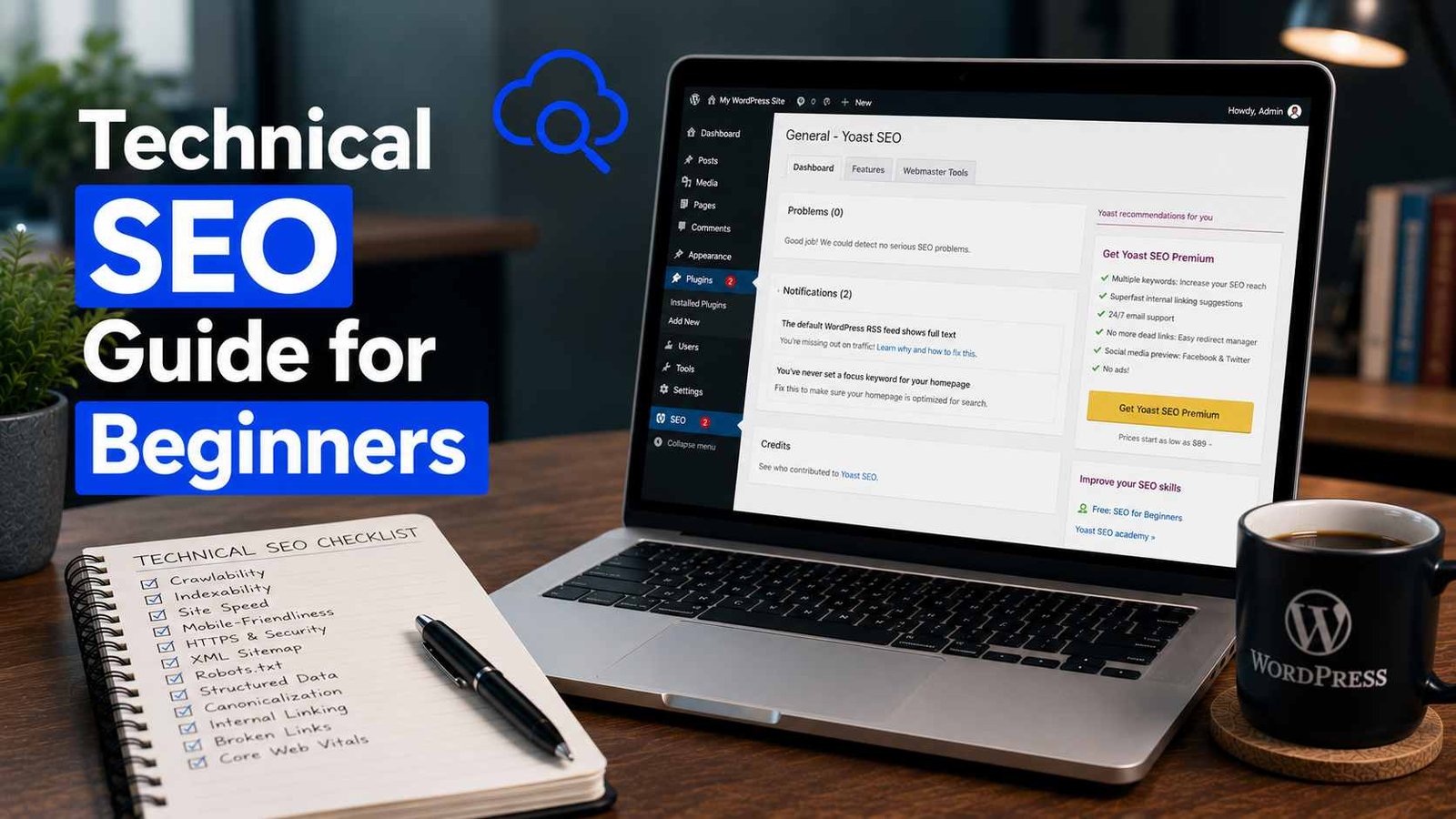

Technical SEO Guide for Beginners
For the longest time, I thought SEO just meant writing good content and sprinkling in the right keywords. I was doing that. My posts were well-researched, decently written, and genuinely useful. And yet, some of them just sat there in Google’s search results — buried on page 4 or 5, getting almost no traffic.
It wasn’t until a friend who worked in digital marketing looked at my site and said, “Have you checked your site’s technical SEO?” that I even realized this was a separate thing. I genuinely didn’t know what that meant at the time.
Turns out, my site had a handful of technical issues quietly working against me — slow load times, broken internal links, duplicate content Google was confused about, and a sitemap that hadn’t been updated in months. None of this was visible just by looking at my site. I had to actually dig for it.
This guide covers everything I wish I’d understood from the start — explained simply, without the jargon-heavy explanations that made this topic feel so intimidating to me at first.
What Technical SEO Actually Means (In Plain Terms)
Technical SEO is basically making sure search engines like Google can easily find, understand, and properly display your website. It’s less about your content’s quality and more about whether Google can access and “read” that content properly in the first place.
Think of it like this: you could have the best restaurant in town, but if the entrance is hidden behind an alley with no sign, nobody’s finding it no matter how good the food is. Technical SEO is making sure the entrance is visible and easy to walk through.
The good news? A lot of this is one-time setup work. Once it’s fixed, you don’t have to keep redoing it for every new post.
Step 1: Make Sure Google Can Actually Find Your Site
This sounds basic, but I’ve seen experienced bloggers mess this up.
Set up Google Search Console. It’s free — go to search.google.com/search-console, verify your site (usually through a DNS record or HTML file upload), and you’re in. This tool tells you exactly how Google sees your site, what’s indexed, and what errors exist.
Submit your XML sitemap. If you’re on WordPress with Rank Math or Yoast SEO installed, your sitemap is automatically generated, usually at yourdomain.com/sitemap_index.xml. Submit this URL inside Search Console under the “Sitemaps” section.
When I finally submitted my sitemap properly (I’d actually submitted an outdated one for months without realizing), several pages that had been sitting un-indexed for weeks got picked up within days.
Check your robots.txt file. This little file tells search engines which parts of your site they’re allowed to crawl. You can view yours at yourdomain.com/robots.txt. I once found an old robots.txt file accidentally blocking my entire blog section — a leftover from when the site was still “under construction.” That alone explained months of poor indexing.
Step 2: Fix Your Site Speed (This One’s Bigger Than You Think)
I genuinely underestimated how much site speed affects both rankings and user behavior until I started checking my numbers.
Use Google PageSpeed Insights (free, just paste in your URL) to see your site’s performance score for both mobile and desktop. The first time I checked mine, my mobile score was embarrassingly low — something like 35 out of 100.
The biggest issues, for me, were:
- Unoptimized images. I was uploading photos straight from my phone, some over 4MB each. Using a free tool like TinyPNG or a WordPress plugin like ShortPixel, I compressed everything and saw an immediate speed improvement.
- Too many plugins. I had accumulated plugins I wasn’t even using anymore. Each one adds extra code that needs to load. I went through and deactivated, then deleted, anything that wasn’t essential.
- No caching set up. Caching basically stores a “ready-to-go” version of your pages so they load faster for repeat visitors. I installed WP Rocket (a paid option, but there are free alternatives like WP Super Cache or LiteSpeed Cache depending on your host) and saw a noticeable difference in load times.
- Heavy themes. My original theme had a ton of built-in animations and sliders I wasn’t even using. Switching to a lighter theme like Astra improved my speed scores significantly.
Step 3: Mobile-Friendliness Isn’t Optional Anymore
Most of your visitors are probably browsing from their phones — this has been true for years now, and it’s only become more true.
Google primarily uses what’s called “mobile-first indexing,” meaning it mostly looks at your site’s mobile version when deciding how to rank you, even for desktop searches.
Test your site using Google’s Mobile-Friendly Test tool, or honestly, just open your own site on your phone and actually use it. I did this once and realized one of my pop-up forms was covering half the screen on mobile, making the article basically unreadable. I’d never noticed because I always checked my site on my laptop.
Step 4: Fix Duplicate Content and URL Structure Issues
This is the part that confused me the most when I first encountered it.
Duplicate content happens when the same (or very similar) content is accessible through multiple URLs. For example, your homepage might be accessible at both yourdomain.com and yourdomain.com/home, and Google doesn’t know which version to actually rank.
WordPress, by default, handles a lot of this reasonably well, but issues can creep in — especially with category pages, tag pages, or if you’ve changed your permalink structure at some point without redirecting old URLs properly.
A few things that helped me:
- Setting a clear, consistent permalink structure under Settings → Permalinks in WordPress (I use “Post name” — clean and simple)
- Using canonical tags (handled automatically by Rank Math or Yoast) to tell Google which version of a page is the “main” one
- Setting up 301 redirects for any old URLs I’d changed, so visitors and search engines land on the correct, current page instead of hitting a dead link
I learned this the hard way after restructuring my blog categories once and forgetting to redirect the old URLs. I lost a chunk of traffic to broken links for weeks before I caught the mistake using Search Console’s “Coverage” report.
Step 5: Internal Linking (Easy to Do, Easy to Forget)
Internal links are links from one page on your site to another page on your site. They help Google understand your site’s structure and help visitors find more of your content.
Early on, I rarely linked between my own posts. Each article existed as its own isolated island. Once I started going back through older posts and adding relevant internal links to newer, related content, I noticed two things: visitors stayed on my site longer, and some of my newer posts started getting indexed faster, likely because Google’s crawlers were finding them more easily through these internal links.
A simple habit that helps: whenever you publish a new post, go back and find 2-3 older, relevant posts to link to it from, and link back to at least one or two of them within the new post too.
Step 6: Structured Data (Sounds Scary, Isn’t Really)
Structured data, often called schema markup, is basically extra code that helps search engines understand specific details about your content — like whether a page is a recipe, a review, an FAQ, or an article.
You don’t need to write this code by hand unless you want to. If you’re using Rank Math, it handles a lot of basic schema automatically, and you can customize it for specific content types under each post’s SEO settings.
I added FAQ schema to a few of my more detailed guide posts, and noticed those pages started showing up with little expandable question dropdowns directly in Google’s search results — which definitely helped with click-through rates, since the listing takes up more visual space.
Step 7: HTTPS and Security Basics
If your site doesn’t show that little padlock icon in the browser, meaning it’s not using HTTPS, that’s a problem both for trust and for rankings — Google has confirmed HTTPS as a ranking signal, even if a relatively small one.
Most hosting providers now offer free SSL certificates (I use Hostinger, and theirs activates automatically through Let’s Encrypt). Just make sure it’s actually active and that your site is properly redirecting all http:// traffic to https:// — you can check this under your hosting’s SSL settings or with your SEO plugin.
Real Example From My Own Site
After going through this technical cleanup — fixing my sitemap, compressing images, fixing a handful of broken internal links, and setting up proper redirects — my site’s average load time dropped from around 4.8 seconds to under 2 seconds.
Within about six weeks, several pages that had been stuck on page 3-4 of Google moved up to page 1-2, without me changing a single word of the actual content. The content was already good. It just wasn’t being read or trusted properly because of the technical issues sitting underneath it.
That was honestly the moment I understood why technical SEO matters as much as content quality. You can have great content, but if Google can’t crawl, index, or quickly load your pages, none of that content quality matters much.
Common Mistakes to Avoid
Ignoring Search Console errors. Check it regularly — even just once a month — for crawl errors, mobile usability issues, or indexing problems.
Forgetting to test on actual mobile devices. Don’t rely only on browser resizing — open your real phone and click around your own site.
Not setting up redirects after changing URLs. If you ever restructure your site, always redirect old URLs to their new locations.
Overloading your site with plugins. Every plugin adds some amount of load time. Regularly audit and remove what you don’t need.
Skipping image compression. This is one of the easiest wins for speed and gets overlooked constantly.
Treating technical SEO as a one-time task. It’s not. New issues can pop up as you add content, change themes, or update plugins. A quick monthly check goes a long way.
Final Thoughts
Technical SEO sounds intimidating because of all the unfamiliar terms, but most of it comes down to a handful of practical, fixable things: making sure Google can find your site, making sure it loads fast, making sure it works properly on mobile, and cleaning up any structural mess behind the scenes.
You don’t need to become a developer to handle this. Tools like Search Console, PageSpeed Insights, and Rank Math handle most of the heavy lifting — your job is mostly just checking in regularly and fixing what they flag.
If your content is solid but your traffic still isn’t matching the effort you’re putting in, this is genuinely worth looking into before assuming your writing or topics are the problem. In my case, it wasn’t the content holding me back at all — it was everything happening quietly behind the scenes that I didn’t even know to check.
Any Question? Contact Us